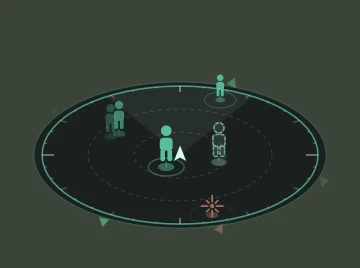
The sound radar shows over the game which side steps and shots come from. The app never enters the game or reads its memory: it listens to the same sound that goes to your headphones and tells the direction from the 7.1 channels.
Why 7.1
Stereo only has left and right: steps ahead and behind sound the same. In 7.1 every direction has a channel of its own, and the radar places marks all around. PUBG outputs 8 channels by itself when the output device is set to 7.1 in Windows.
Option 1. An ordinary sound card or headset with 7.1
- Open “Sound” (in PUBG URC: Sound radar → Open sound settings), Playback tab.
- Select the device you play on, press “Configure” → “7.1 Surround” → “Next” to the end.
- Restart PUBG completely — the game picks the channel count at start.
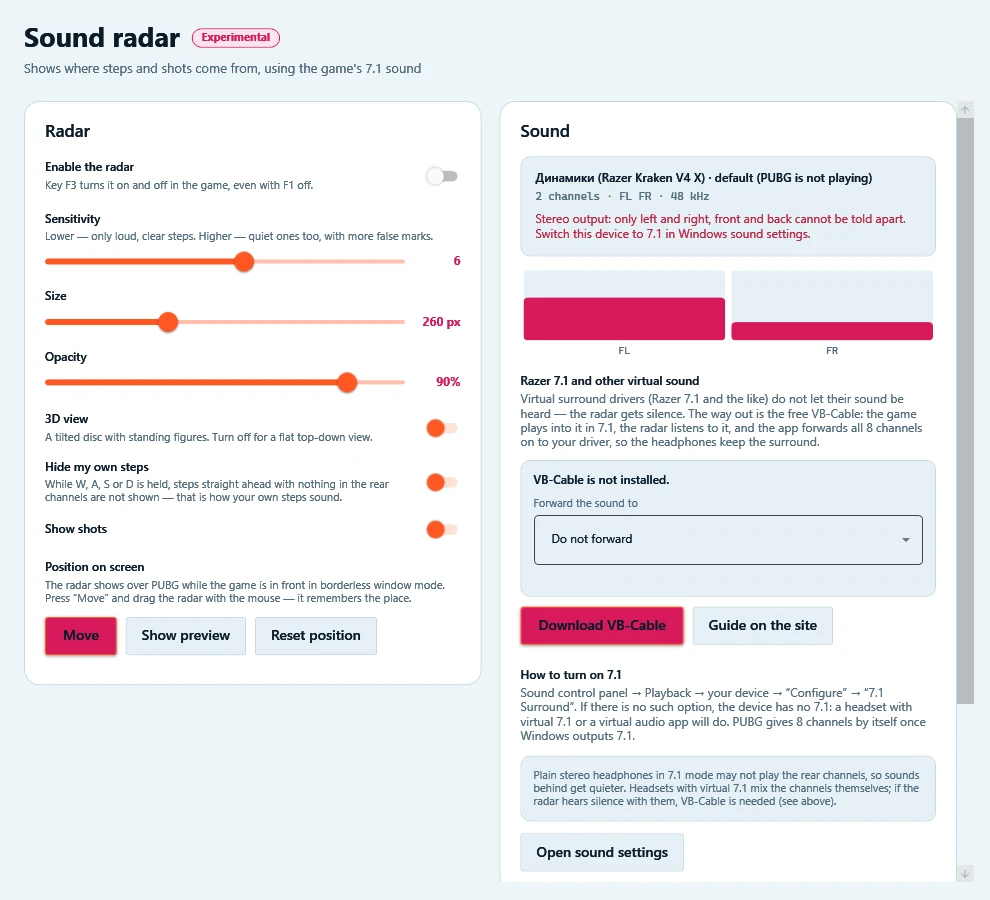
- The radar page should say “PUBG sound · 8 ch” in green, and the channel meters should move.
If the page says the driver gives only silence, you need option 2.
Option 2. Razer 7.1, THX and other virtual sound — through VB-Cable
Virtual surround drivers (Razer's “7.1 Surround Sound”, for one) take the sound for themselves, and Windows does not let it be heard: the radar gets silence. The way around is the free VB-Cable virtual cable. The game plays into the cable in 7.1, the radar listens to the cable, and PUBG URC forwards all 8 channels on to your Razer driver — the headphones keep the same surround. Forwarding adds about 20–30 ms.
- Download VB-CABLE Driver from the official site vb-audio.com/Cable (the “Download” button in PUBG URC leads there too). Unpack it, run VBCABLE_Setup_x64.exe as administrator and press “Install Driver”.
- Restart the computer. The “CABLE Input” and “CABLE Output” devices do not appear before that.
- In Sound → Playback select CABLE Input (it may be called “Speakers (VB-Audio Virtual Cable)”) → “Configure” → “7.1 Surround” → “Next” to the end. Then press “Set Default”.
- The Razer app (7.1 Surround Sound) stays on, with your headset as its output device, as before.
- In PUBG URC → Sound radar → “Forward the sound to” choose the previous device, for example “Speakers (7.1 Surround Sound)”.
- In Discord and other voice chats set the output to the headset directly — then voices do not go through the cable and do not draw false marks.
- Restart PUBG completely and check the radar page: the cable · “PUBG sound” · “8 ch” and the line “Sound goes on to …”.
Note: while PUBG URC is closed, nothing forwards the sound from the cable. To get the usual sound back without the app, make the previous device the default again.
Using it
- Turning and the sides of the world. Press “Calibrate the turn” once and in the game turn exactly one full circle back onto the same landmark — marks start turning with the camera. In each match look north on the game's compass and press F4 — the radar shows N, E, S, W. If the sides drift (after shooting through a scope, say), press F4 again.
- Distance depends on the game's volume: if someone is right next to you but the radar puts them in the middle, move the “Distance” slider right.
- Run PUBG in borderless window mode: in full screen the radar is not visible over the game.
- F3 turns the radar on and off in the game. “Move” — and the radar stays where you drag it.
- “Hide my own steps” removes your own steps while W, A, S or D is held.
- Distance is a rough guess from the loudness: close, middle or far. Height (a floor above or below) cannot be told from sound.
The radar is experimental. If marks go to the wrong place or go missing, press “Record 30 seconds” on the radar page during a match and send the recordings to support: detection is tuned on them.